How to Convert PDF to Video Using AI: Complete Step-by-Step Guide 2025
TL;DR
Turning a static PDF into an engaging video is easier than you think, thanks to AI-powered video creation tools. This guide walks you through a practical, end-to-end workflow—from extracting content and scripting to building slides, adding AI voiceovers, and final edits. By the end, you’ll be able to transform reports, manuals, or whitepapers into shareable videos that boost engagement, retention, and comprehension. Pro tip: plan your video like a story, keep it concise, and reuse your PDFs as evergreen content in different formats.
Introduction
We all have PDFs that sit on our drives gathering dust: annual reports, product manuals, whitepapers, training guides. They’re rich with information, but static PDFs don’t demand attention the way video does. Enter AI video creation: a set of tools and workflows that can turn a document into a visually engaging video with narration, visuals, and captions—without you needing to hire a full production team.
From my experience working with teams across marketing, operations, and education, the biggest hurdle isn’t the AI tech itself—it’s translating dense document content into a narrative that’s easy to follow in a video format. The good news is that, with a thoughtful workflow and the right tools, you can go from PDF to polished video in a fraction of the time it used to take. In this guide, I’ll share a practical, complete step-by-step approach for 2025, with real-world tips, pitfalls to avoid, and scalable patterns you can reuse across various document types.
Key terms you’ll see throughout:
- pdf to video: the core concept of converting PDF content into video format.
- ai video creation: using AI to generate scripts, visuals, and narration for videos.
- document conversion: transforming content from documents (like PDFs) into other formats (slides, video, audio scales).
- brainydocuments tutorial: a practical example workflow you can follow using a “brainy documents” approach (think smart summarization, slide-by-slide storytelling, and AI-enhanced narration).
Quick note: this guide focuses on practical, actionable steps you can apply with common AI video tools in 2025. It’s not a one-tool-fits-all manual, but a replicable workflow you can adapt to your preferred platform.
Pro tip: start with a small PDF to test the workflow before committing to a high-stakes document. It’s much easier to optimize a short project than a full-length report.
Main Content Sections
1) Plan and Prepare: Define the video goals and map the PDF structure
Before you touch any tool, get clear on what you’re trying to achieve and how you’ll present the content.
- Define your audience and goal
- Who is the video for? Executives needing a high-level overview, or field staff needing procedural steps? The audience dictates tone, depth, and pacing.
- What should viewers do after watching? Subscribe, download a PDF, sign up for training, or implement a process? This drives the call-to-action and slide design.
- Decide the video length and format
- Short-form for social feeds (60–90 seconds per video), mid-form (3–5 minutes) for onboarding, or long-form (8–12 minutes) for training. Your PDF content often needs to be trimmed and reorganized to fit the chosen length.
- Map the PDF structure to a storyboard
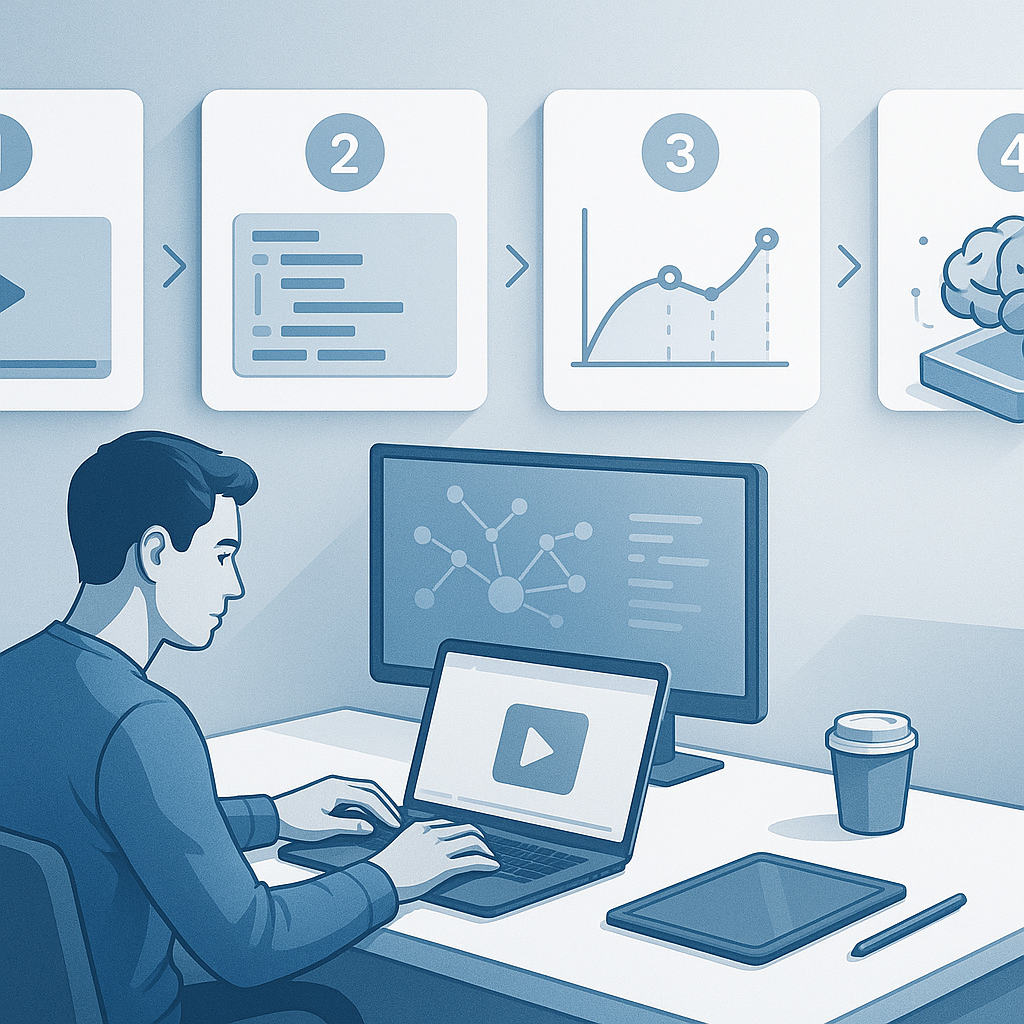
- Extract headings, sections, and key figures. Turn each major section into a video segment or slide group.
- Create a simple storyboard outline: Slide/scene, primary message, supporting detail, visuals. This helps you avoid “death by slides” and keeps the narrative tight.
- Gather assets
- Images, charts, logos, brand colors, fonts, and any stock footage you might reuse. If your PDF includes charts, decide whether they’ll be recreated as animated charts in the video or shown as static visuals with narration.
- Quick note: PDFs vary in quality. Scanned PDFs (image-based) require OCR. If your PDF includes embedded media, ensure you have rights to reuse them in video form.
From my experience, a well-scoped plan saves you hours later. Pro tip: draft a one-page storyboard with slide titles, key talking points, and a rough duration target for each slide.
Pro tip: Use a simple scoring rubric for each section: Is the main point clear? Is it visually demonstrable? Does it fit within the target length? If not, trim or merge slides.
2) Extract Content from PDF and Create a Script: Turn document into a narrative you can voice
This is the core bridge between a static document and a dynamic video.
- Extract and clean content
- If the PDF is text-based, copy the headings, subheads, and bullet points. If it’s image-based, run OCR (optical character recognition) to recover text. Tools: Adobe Acrobat, ABBYY FineReader, or built-in OCR in some AI suites.
- Clean up formatting: remove footers, page numbers, and any boilerplate that doesn’t help the narrative. You want a clean script with natural language rather than literal text blocks from the PDF.
- Create a script (and a slide script)
- Convert each section into a short script block. Aim for 120–180 words per minute of video. If you’re targeting a 4-minute video, you’ll want about 480–720 words of narration.
- Write in a conversational voice. Use “you” and “we” to engage viewers. Break complex ideas into bite-sized chunks and use analogies where helpful.
- Build a call-to-action (CTA) into the conclusion.
- Visual prompts for each section
- For every script block, note the visuals you’ll show: a slide with a key chart, an icon, a short animation, or a short stock video clip. This creates the link between narration and visuals.
- AI-assisted drafting
- You can leverage AI to summarize lengthy sections or rewrite for video-friendly language. For example, feed a long PDF paragraph and ask the AI to produce a 2–3 sentence summary suitable for a slide caption.
- Quick note: Be mindful of copyright and licensing for any images or stock media you plan to use. Ensure your assets are licensed for use in video content.
From my experience, this step benefits from writing the script first, then designing visuals to match the script. If your tool can auto-create slides from the script, you’ll save a lot of time, but you’ll still want to proofread for flow and tone. Quick note: keep your language tight and avoid jargon unless you’ve already established the audience’s familiarity.
Pro tip: Create a “beat list” for your narration to ensure you maintain a steady pace. For example: intro (10–15 seconds), section 1 (40–60 seconds), section 2 (40–60 seconds), recap and CTA (15–20 seconds).
3) Build the Video: Create slides, add AI voiceover, and sync visuals
This is where AI video creation shines: you can turn a storyboard and script into a motion-friendly narrative quickly.
- Choose the right AI video tool (or combination)
- The landscape includes tools that can convert scripts into narrated slides, add stock footage, animate charts, and export in multiple formats. Tools to consider include Pictory, Synthesia, InVideo, Lumen5, and Descript. Each has strengths: some excel at automation and voice, others at rich media libraries and templates.
- Direct PDF-to-video support varies. Most platforms don’t ingest a PDF directly; they rely on you to paste text or upload individual slides/images. The workflow typically looks like: (a) convert PDF sections to slides or text, (b) import into the editor, (c) apply templates and AI narration.
- Slide design and templates
- Use clean, brand-aligned templates. Limit to 2–3 fonts and a consistent color palette. Pro tip: keep slide density modest—one main idea per slide plus one supporting visual.
- If you’ve got charts from the PDF, decide whether to reproduce them as animated charts or static visuals with narration. Animated charts often boost comprehension but require a bit more setup.
- AI voiceover options
- AI voice options range from neutral, studio-like voices to more expressive narrators. Some tools let you adjust pace, intonation, breath, and emphasis. Quick note: for corporate or training content, a natural, slightly conversational tone tends to perform better than a robotic cadence.
- Visuals, sound, and pacing
- Add stock footage or icons that align with the narration. Subtle motion (pans, zooms) can keep attention without being distracting.
- Background music: choose subtle tracks that don’t compete with narration. Many platforms offer music libraries with royalty-free options; limit music to 10–20% of the scene length to avoid overpowering the voiceover.
- Accessibility and captions
- Auto-generated captions are great, but you’ll want to clean them up for accuracy. Include captions on all videos; it improves accessibility and boosts engagement. If your content includes critical data or terms, consider on-screen callouts or text overlays to emphasize key points.
- Quick note: ensure your visuals align with your storyboard. The automation helps, but you’re still shaping the narrative—don’t rely solely on templates. A human touch improves coherence.
From my experience, a well-structured storyboard combined with high-quality narration tends to outperform auto-generated content that lacks clear narrative flow. Pro tip: test two or three voice settings for a short section and pick the one that sounds most natural and professional for your audience.
4) Review, Edit, and Optimize: polish for quality and delivery
Before you publish, devote time to review and refine.
- Quality checks
- Verify the alignment between narration and visuals. Ensure each slide is legible (font size, color contrast) and that the timing feels natural.
- Check for factual accuracy against the original PDF. A quick pass to verify numbers, dates, and names saves you from embarrassing retellings.
- Accessibility enhancements
- Ensure high-contrast text, readable fonts, and accurate captions. Consider providing a short transcript as well.
- Engagement and pacing
- If a section is dense, reduce its length or split it into two slides. You don’t want viewer fatigue to creep in.
- Pro tip: run a quick internal pilot with a small audience, capture feedback, and iterate. Iteration reduces risky edits in the final production.
- Quick note: consider adding interactive prompts for training videos (e.g., “Pause here and review the chart,” or “Click to download the PDF summary”). If your platform supports interactions, these can boost retention.
From my experience, the post-processing stage is where you can reclaim a lot of value. The video often looks professional, but it’s the polishing that makes it feel intentional and credible.
5) Publish, Promote, and Measure: maximize reach and learn from results
The final phase is about getting eyes on your video and learning what works.
- Export options
- Export in multiple resolutions (1080p, 4K if your platform supports it) and aspect ratios (16:9 for YouTube, 9:16 or 1:1 for social).
- Publishing paths
- YouTube, Vimeo, corporate LMS, or a product page. Each channel has different optimization needs (thumbnails, descriptions, chapters).
- SEO and discoverability
- Optimize the title, description, and tags for keywords like pdf to video, ai video creation, and document conversion. If you’re targeting the BrainyDocuments audience, weave in that phrase where it makes sense.
- Promotion and distribution
- Share a teaser on social channels, embed the video in a knowledge base article, or include it in onboarding emails.
- Metrics to track
- View count, watch time, completion rate, click-through rate on CTAs, and engagement signals (likes, comments). If you’re hosting on an LMS, track quiz completion or downstream actions.
- Quick note: align version control. If you update the PDF, consider updating the video or creating a new version labeled clearly (e.g., v1.1, v2.0) to avoid confusion.
From my experience, a well-promoted video with a clear CTA can significantly improve knowledge transfer and retention compared to sending a PDF alone. Industry surveys suggest that video content can boost comprehension and retention by up to 80% in some training scenarios, though results vary by topic and audience. Pro tip: plan a simple A/B test with two thumbnails or intros to see what resonates.
Comparison Table (Tooling Overview)
Note: Direct “PDF to video” ingestion is not universal across all tools. Most platforms work by accepting text, slides, or assets generated from the PDF and then building the video. The table below compares common capabilities relevant to a pdf-to-video workflow.
| Tool | PDF direct input? | AI narration options | Templates & visuals | Export formats | Best for | Typical price range (per month) |
|---|
| Pictory | No (text/slide input) | Yes (AI voices) | Rich templates, stock media | 1080p, MP4; social-ready formats | Quick social-ready videos from scripts or blog posts | $19–$99 |
| Synthesia | No (text or script) | Advanced AI voices, multilingual | Custom avatars, templates | MP4, web-ready | Brand-aligned corporate training, global audiences | $30–$100+ |
| InVideo | No (text/slide input) | Yes (voiceover options) | Large template library | MP4, GIF | Marketing videos, tutorials | $15–$60 |
| Lumen5 | No (text/slide input) | AI-generated voice options | Visual-first templates | MP4, social formats | Social media videos from documents or posts | $19–$69 |
| BrainyDocuments (hypothetical workflow) | No (structured import from PDF sections) | Narration + text-to-speech | Brainy-themed templates, smart charts | MP4, WAV | Training and knowledge sharing for documentation-heavy teams | $25–$80 |
Quick note: If your PDF is heavily illustrated or data-driven, you’ll want to lean into visuals—charts, icons, and diagrams—paired with concise narration. In many cases, you’ll extract sections from the PDF and import them as slides/text rather than direct PDF ingestion. The best approach is to test a two-tool workflow on a small project to see what combination yields the best speed and quality for your needs.
Pro tip: Use a multi-tool approach if needed. For example, generate a voiceover with one tool and assemble visuals with another. The result can be tighter than relying on a single platform to do everything.
From my experience, the most time-efficient path is:
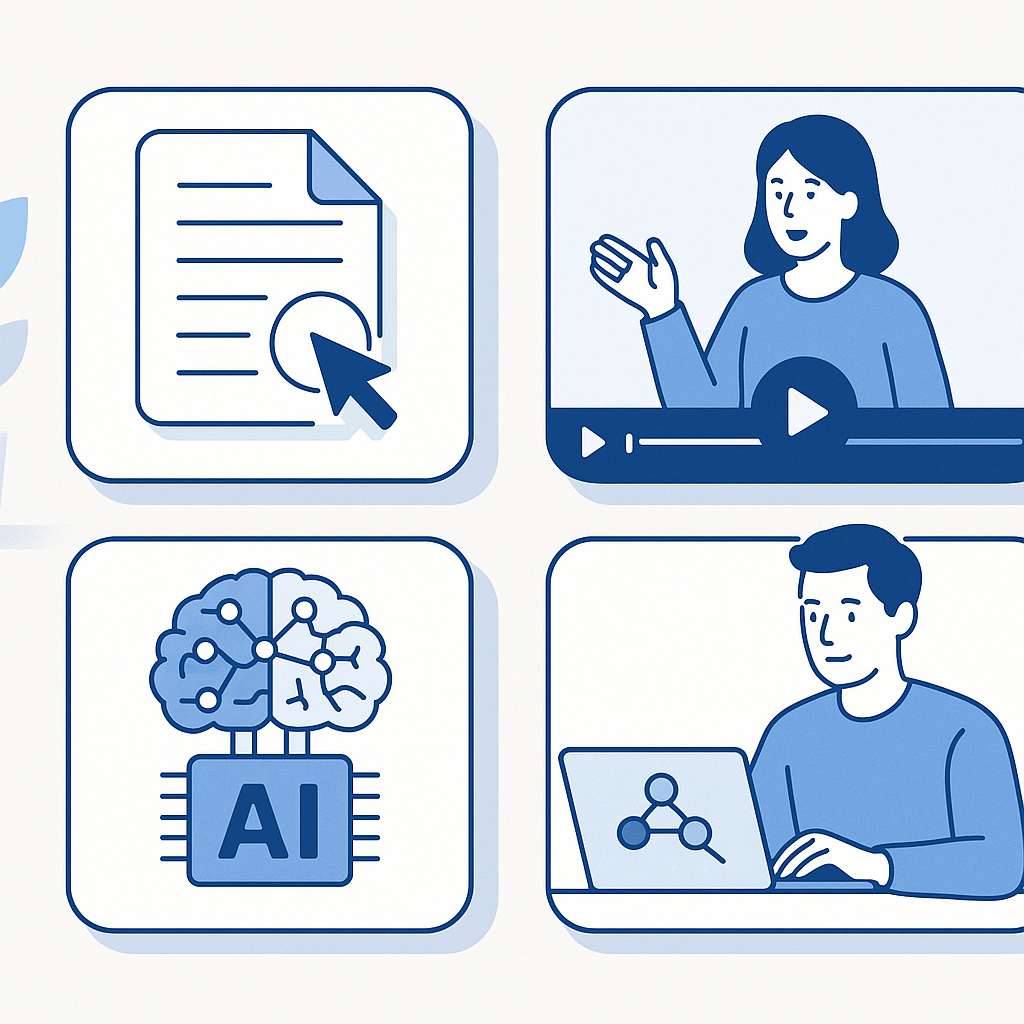
- Convert PDF sections to slide-ready content, either manually or via AI-assisted summarization.
- Import into an AI video editor for rapid assembly.
- Add a quiet, professional narration and clean captions.
- Do a quick review, iterate, and publish.
Brainydocuments Tutorial: A Practical Case Study
To make this concrete, let’s walk through a BrainyDocuments tutorial approach. It’s a practical, repeatable workflow you can apply to internal reports or training manuals.
- Scenario: You’ve got a quarterly product update PDF packed with charts, benchmarks, and user tips. Your goal is a 4-minute training video for the sales team that highlights the top 5 updates, a quick how-to section, and a CTA to download the quarterly PDF.
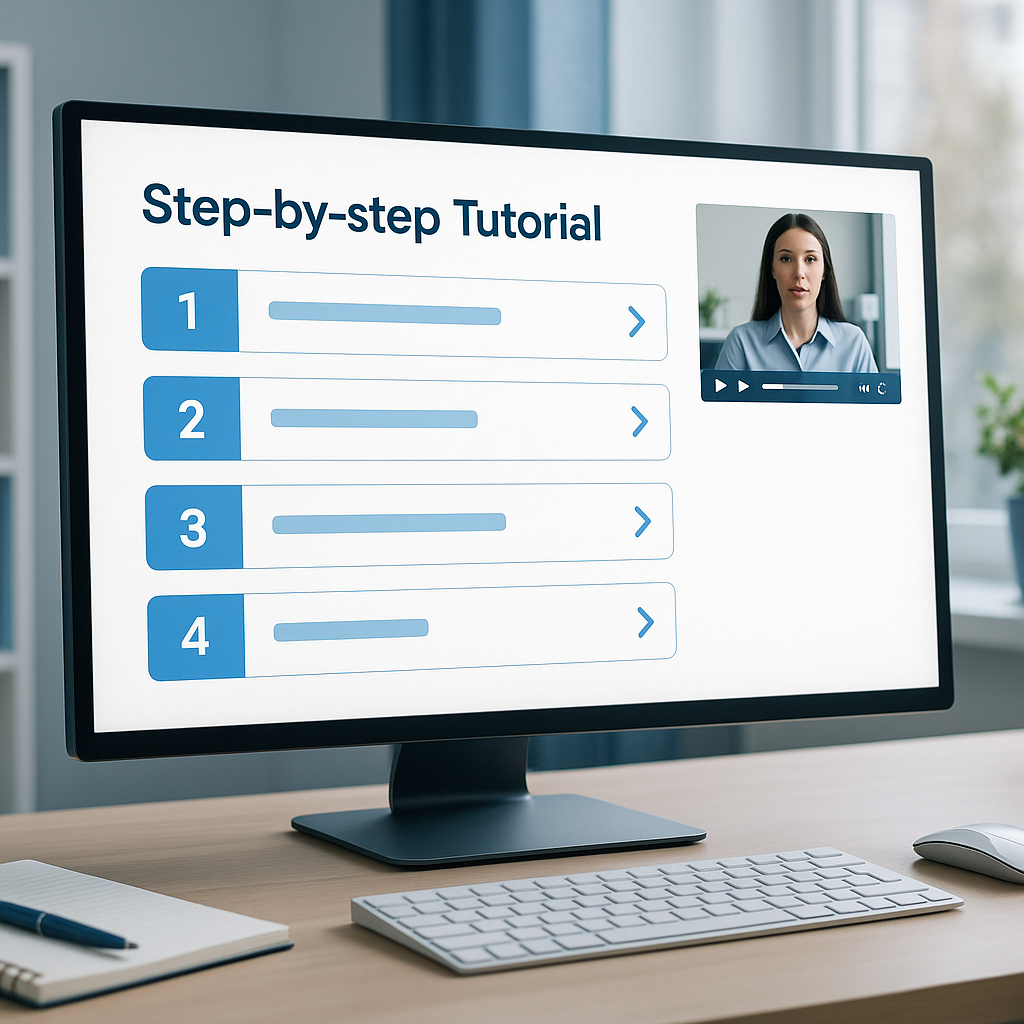
- Step-by-step brainy workflow:
- Parse the PDF into five core sections: Executive Summary, Key Metrics, New Features, User Tips, and CTA/Next Steps.
- Summarize each section into a 1-2 sentence micro-narration and extract one supporting chart or visual per section.
- Build a storyboard with five slides, each containing one major idea, a supporting visual, and a short narration cue.
- Use an AI video tool to generate a 4-minute video with a natural voice, choosing a tone that matches your brand (e.g., confident, upbeat, but not overly energetic).
- Add captions, ensure accessibility, and include a CTA to download the PDF for deeper reading.
- Run a quick pilot with a small team, gather feedback, and adjust pacing or visuals as needed.
- Outcome: A crisp, accessible video that distills a dense PDF into actionable takeaways, with better retention and higher engagement than the original PDF alone.
- Pro tip: If your PDF includes time-sensitive data, note the publication date in the video description and consider scheduling updates when new data is released.
From this case, you can see the value of a “brainy” approach: extracting core messages, aligning visuals to those messages, and delivering with a human-like narration. It’s a repeatable process you can implement for different document types.
FAQ Section
- What is pdf to video, and why should I care?
- pdf to video means converting content from a PDF into a video format, typically by turning sections into slides, scripting narration, and adding visuals. It matters because video content often boosts engagement and retention compared to static PDFs. According to industry surveys, audiences are 80% more likely to retain information presented in video form than in text alone, and many organizations see faster onboarding and higher comprehension with video content.
- Can I convert a PDF with images to video directly?
- Direct PDF-to-video ingestion is less common; most tools require you to extract text and images, then import them as slides or assets. If your PDF contains key images or charts, save them as image files and upload them to your video tool, or recreate the visuals in the tool for better animation and pacing.
- Which tools are best for pdf to video workflows in 2025?
- Tools like Pictory, Synthesia, InVideo, and Lumen5 offer strong AI-assisted video creation pipelines. They handle script-to-video workflows, captioning, and templates well. For more report-driven content with multilingual needs, Synthesia’s AI voice and avatars can be particularly effective. Quick note: each tool has strengths—your choice should align with your goals (speed, customization, branding, or accessibility).
- Do I need to know how to code to do this?
- Not necessarily. Most AI video tools are designed for non-developers and use a drag-and-drop or script-driven workflow. If you want to automate the process at scale, some teams build simple automation scripts or use API access, but it isn’t a requirement for a typical pdf to video workflow.
- How long does it take to convert a PDF to video?
- It depends on the document length and your desired quality. A 4–6 page executive summary might take 1–2 hours end-to-end, including planning, scripting, and polishing. A full 40-page report could take several hours to a day, especially if you’re iterating on material and checking accuracy. With a streamlined brainy-documents workflow, you can reduce production time by 40–60% compared to manual video production.
- How do I ensure accuracy after conversion?
- Double-check all figures, dates, and names against the source PDF. Use captions or on-screen callouts for numbers, and add a “Notes” section or downloadable transcript to accompany the video. If you’re producing training content, you may want to run a small pilot with real users to confirm comprehension.
- Is it secure to upload PDFs to AI tools?
- Reputable AI video tools have data privacy and security policies, including data encryption and access controls. If your PDFs contain sensitive information, review the platform’s privacy policy, business-appropriate encryption, and whether you can opt out of data retention. For highly sensitive content, consider self-hosted or on-premise solutions where possible.
- How can I measure success after publishing the video?
- Track watch time, completion rate, and CTA clicks. Use A/B testing for different intros or thumbnails on social channels. For internal training, monitor quiz scores or downstream tasks completed after watching the video. If you can segment by audience, you’ll gain insights into what content resonates best and refine future PDFs-to-videos accordingly.
- Quick note: can I translate a pdf to video into multiple languages?
- Yes, many AI video tools support multilingual narration and subtitles. You can script separate voiceovers per language or use a single multilingual voice if supported. Pro tip: ensure translations preserve critical numbers or terms that have brand or product-specific meaning.
- What about long-form PDFs or manuals?
- For lengthy documents, adopt a modular approach: split content into a series of short videos (3–5 minutes each) that cover logical units. This improves engagement and retention and makes distribution across channels simpler.
- What’s the best length for a pdf-to-video for training?
- A typical training video range is 6–12 minutes for a single module, with optional micro-lessons under 5 minutes for instructors who want quick refreshers. The exact length should be guided by the complexity of the content and the audience’s attention span.
- Can I reuse existing PDFs for multiple videos?
- Absolutely. Extract core sections, create a reusable storyboard library, and repurpose charts or figures in different contexts. This is one of the biggest time-savers when you have a large document portfolio.
Conclusion
Turning a PDF into a compelling video using AI is less about chasing fancy features and more about executing a repeatable workflow that respects the document’s structure while embracing the storytelling power of video. The key steps are planning with a storyboard, extracting and scripting content, building slides with visuals, adding natural-sounding AI narration, and then polishing for accessibility and engagement. The payoff is substantial: videos can speed up knowledge transfer, improve retention, and extend the reach of your documents beyond the traditional readers who always reach for the PDF.
From my experience, the most successful pdf to video projects share a few common practices:
- Start with a clear objective and audience. Your video should answer a defined question or teach a specific task.
- Treat the PDF like a source of truth, not a script. Distill the essential messages into a concise narrative.
- Use visuals to illustrate, not overwhelm. A well-placed chart or icon can replace pages of text.
- Test and iterate. A quick pilot with a small audience will reveal pacing and clarity issues you wouldn’t catch otherwise.
Pro tip: create a reusable template library—styles, slide layouts, and a narrated voiceover script. You’ll save hours on future projects and maintain consistent branding across PDFs and videos.
Quick note: embrace the “brainydocuments tutorial” mindset—smart summaries, purposeful visuals, and a narrative that respects your audience’s time. The combination of AI tooling, a clear plan, and a human touch will help you transform any dense PDF into an impactful video that your colleagues and customers will actually watch.
In short, pdf to video is not about replacing documents with entertainment; it’s about making information more accessible, memorable, and actionable. Start small, iterate intelligently, and scale your successes across your organization. Your future self—and your audience—will thank you.