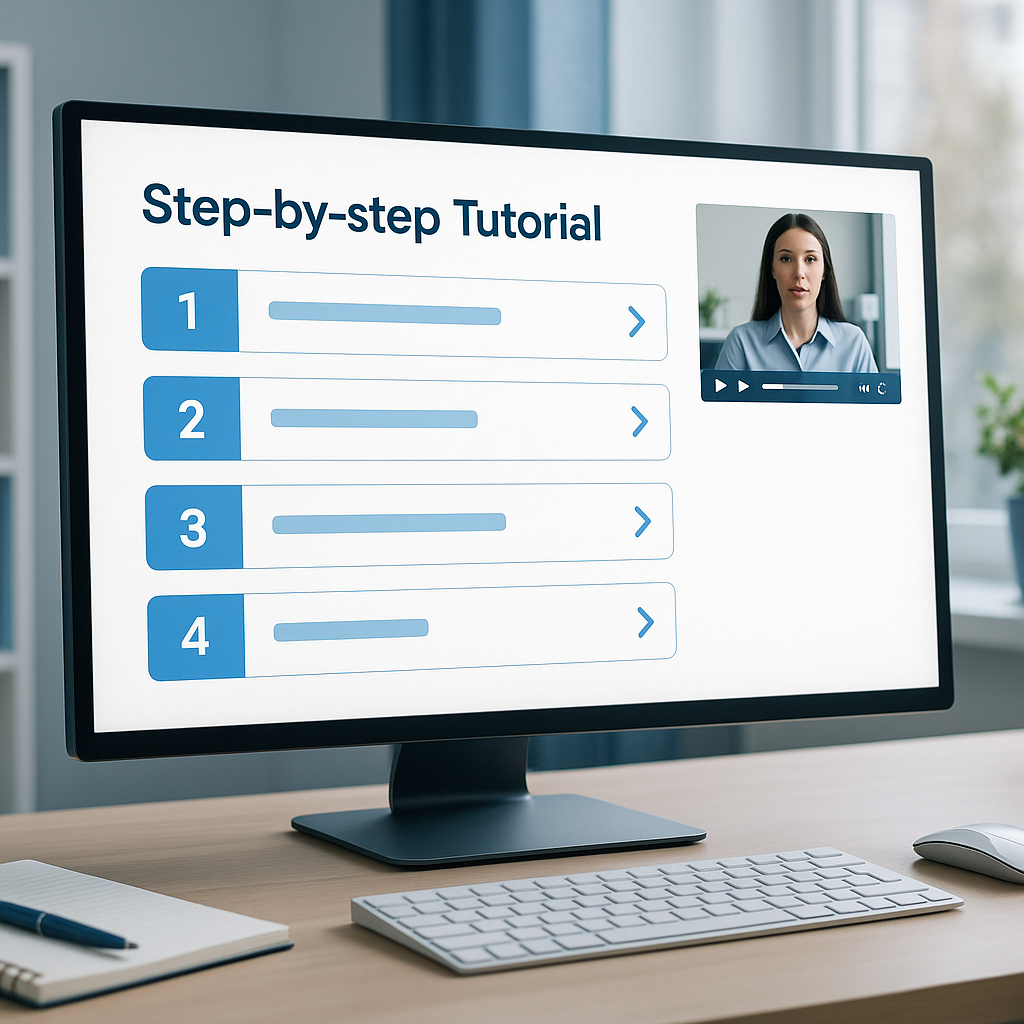

How-To Guides

How to Convert PowerPoint Slides to Professional Videos with AI

From my experience, the real magic happens when you treat this as a streamlined workflow rather than a one-off export.
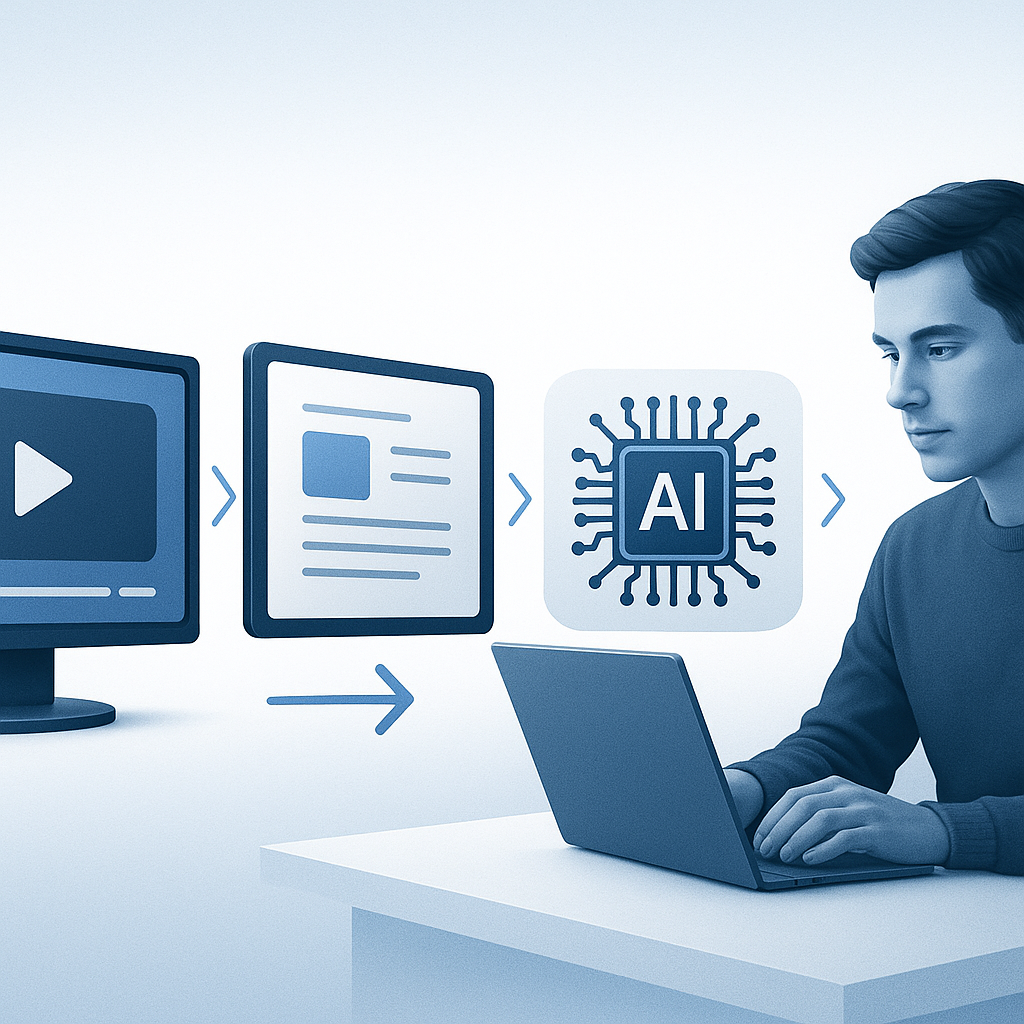
By BrainyDocuments TeamAugust 31, 202514 min read
How to Convert PowerPoint Slides to Professional Videos with AI

How to Convert PowerPoint Slides to Professional Videos with AI

TL;DR

  • You can turn slide decks into polished video presentations without starting from scratch by combining PowerPoint’s export options with AI-powered narration, captions, and editing.
  • Build a smart workflow that includes scripting, automation, and AI-enhanced slide animation to deliver video presentations that feel human, engaging, and on-brand.
  • Pro tip: plan with a storyboard, script your narration, and batch-process slides to save hours. Quick note: keep animations purposeful and accessible to reach broader audiences.

Introduction

We’ve all been there: a killer slide deck sits on your drive, but turning it into a compelling video presentation feels like a daunting extra step. You want smooth narration, clean slide animations, on-brand visuals, captions for accessibility, and a delivery format that’s easy to share on social, intranets, or client portals. The good news is that you don’t need to reinvent your entire presentation to get there. With a practical blend of PowerPoint features and AI-powered tools, you can convert PowerPoint slides to professional videos that look and sound like they were produced by a seasoned editor.

From my experience, the real magic happens when you treat this as a streamlined workflow rather than a one-off export. You start with a storyboard, let AI handle the heavy lifting for narration and captions, and then use lightweight video editing to polish pacing, music, and transitions. The result is a scalable process: you can turn a 10-slide deck into a 2–3 minute video in minutes, not hours, and you can repeat it across multiple decks with consistency.

In this article, I’ll walk you through a practical, soup-to-nuts approach to converting PowerPoint slides to AI-augmented videos. We’ll cover planning and design, building an AI-powered pipeline, optimization and polishing, and a few common pitfalls to avoid. You’ll find concrete steps, pro tips, quick notes, and a glossary of options so you can pick the right combination for your needs. If your goals include “presentation automation,” “slide animation,” and “video presentations,” you’ll come away with a repeatable process you can actually implement.


Main Content Sections

1) Plan, Script, and Design: Set the Foundation for AI-Enhanced Video

Turning slides into video is not just about pressing a button—it’s about pacing, storytelling, and accessibility. The first step is to plan with a storyboard and a script, then design slides with consistent visuals that travel well to video.

What to do

  • Audit your deck: Remove clutter, ensure a single visual theme, and standardize fonts and colors. A clean deck translates to smoother video generation. If some slides are too content-heavy, split them into multiple slides or replace dense text with visuals.

  • Create a storyboard: Map each slide to a spoken line or a short scene. Decide how long each slide should appear. For a crisp 2–3 minute video, you’ll typically want 60–90 seconds of speaking time spread across 6–12 slides, depending on the depth of each topic.

  • Script with AI (and refine): Draft a concise narration script for each slide. You can feed bullet points into an AI writing assistant to generate a natural-sounding script, then tailor it to your voice and tone.

  • Plan slide animation thoughtfully: “Slide animation” can amplify a point, but overdo it. Favor subtle entrances, emphasis, and exit animations that align with the narration. For video, consistent micro-animations create a polished feel without distracting.

  • Accessibility as a feature: Plan captions and readable contrasts from the start. Captions improve comprehension and broaden reach. If your audience includes non-native speakers or viewers in sound-off environments, this is essential.

Pro tip: Build a simple timing guide for each slide (e.g., Slide 1 – 8 seconds, Slide 2 – 10 seconds, etc.). This makes syncing narration with visuals much smoother when you start the AI voiceover work.

Quick note: Use PowerPoint’s built-in Design Ideas (Designer) to keep slides clean and cohesive. Then lock in a slide master with your logo, colors, and typography so every slide has a consistent look that translates well to video.

From my experience, starting with a storyboard reduces last-minute rewrites and helps you pick the right AI tools for narration and editing later. If you’re aiming for “presentation automation,” a well-defined storyboard is what makes batch-processing decks feasible.


2) Build the AI-Powered Video Pipeline: Narration, Captions, and Editing

This is the core of the workflow where AI adds speed and polish. You’ll combine PowerPoint exports with AI voiceover options, automated captions, and optional AI-assisted video editors to craft a professional finish.

What to do

  • Export strategy from PowerPoint:

    • Option A: Use PowerPoint’s built-in export to video (File > Export > Create a Video). This creates a straightforward video with your slide timings.
    • Option B: Export slides as images (PNG/JPG) to feed into an AI video tool or editor that can layer stock footage, voiceover, and overlays. This can be helpful if you want dynamic scenes beyond the static slide visuals.
  • AI voiceover and narration:

    • Create your narration script slide-by-slide (as planned in Step 1).
    • Generate AI narration using tools like Murf, ElevenLabs, or Descript Overdub. Pick a voice that fits your brand and adjust pacing to match your storyboard.
    • Use a voice cloner carefully and ethically (ensure you have rights or consent for any voice branding). Keep a consistent voice across slides for a cohesive video.
  • Auto-captioning and caption editing:

    • If you use PowerPoint’s export, you can enable “Add Timings and Narrations” to generate captions later in your video editor.
    • For higher accuracy, generate captions with AI transcription services or built-in editor tools, then clean up punctuation, speaker labels, and line breaks.
    • Make sure captions align with the narration timing to avoid drift.
  • AI-assisted video editing and enhancement:

    • AI video editors like Pictory, InVideo, or Synthesia can auto-suggest stock footage, b-roll, and transitions aligned to your narration. They can also insert lower-thirds, title cards, and callouts that fit your theme.
    • If you prefer a desktop workflow, Descript offers an all-in-one solution to mic your narration, auto-edit, and align video with text. You can drop in your slide visuals and overlay AI-generated narration.
    • For slide animation-inspired motion, you can apply “motion graphics” layers inside the AI editor to create cinematic pacing without manual keyframing.
  • Automation for batch workflows (presentation automation):

    • Use PowerPoint macros or Office Scripts to export slides to images or generate consistent timing cues for every deck.
    • Create a template folder structure so that when you drop a new PPTX, the automation triggers: slide export, script generation, AI voiceover generation, and video assembly in your chosen editor.
    • If you’re comfortable with automation platforms (like Zapier or Make), you can trigger a chain: new slide deck in OneDrive triggers export to images, which then feed into your AI video tool for narration and editing.

Pro tip: Keep the timeline simple. If you’re just starting, create a 1–2 minute demo video from a 6–8 slide deck to validate pacing before scaling to longer presentations. A well-tuned baseline makes future decks easier to produce.

Quick note: When you mix PowerPoint exports with AI video editors, you’ll often get the best results by letting the AI handle the “scene” composition (stock footage, overlays) while you retain control over the script and branding. This keeps the video faithful to your message and brand while delivering a polished look.

From my experience, AI-powered narration and auto-captioning dramatically reduce production time. A typical 8-slide deck that used to take an hour to record and edit might only take 15–30 minutes with a good AI workflow, once you’ve established your templates and prompts.


3) Polish, Fine-Tune, and Optimize for Distribution

After you’ve built the base video, it’s time to tighten the pacing, verify accessibility, and tailor the output for distribution channels. The details here often separate a decent video from a professional one.

What to do

  • Fine-tune pacing and transitions:

    • Review the video with the storyboard in mind. Ensure each slide’s narration matches the on-screen visuals, and adjust duration if a section feels rushed or slow.
    • Use tasteful slide animations and motion cues to highlight key points, but avoid jittery or excessive motion. The aim is clarity, not distraction.
  • Audio quality:

    • Normalize audio levels across narration and background music so there’s no jarring volume shifts.
    • Use noise reduction and equalization to ensure speech remains crisp. If you add background music, keep it low enough to not compete with the voiceover.
  • Captions and accessibility:

    • Ensure captions are synchronized and include speaker labels if multiple voices exist.
    • Confirm high-contrast text on video frames and legible font sizes for mobile viewing.
  • Visual branding:

    • Apply your brand kit consistently: logo placement, color palette, typography, and lower-thirds. Using a single intro/outro template helps maintain a professional identity.
  • Export specifics:

    • For most corporate or marketing videos, export in 1080p (1920x1080) with MP4, H.264, at 30fps. If you’re producing vertical videos for social platforms, consider a 9:16 format too.
    • Keep file sizes in check by choosing a sensible bitrate (e.g., 8–12 Mbps for 1080p) and a reasonable audio bitrate (128–256 kbps).
  • Accessibility and SEO considerations:

    • Write descriptive video titles and include a concise description with relevant keywords (including your target keywords like presentation automation, slide animation, video presentations, and powerpoint to video).
    • Provide transcripts or downloadable captions for searchability and accessibility.

Pro tip: Build a reusable video template. A single intro and outro, consistent lower-thirds, and a standard color treatment save time across decks and ensure a consistently professional feel.

Quick note: A lot of value comes from test viewing. Share a draft with a small internal audience and gather feedback on clarity, pacing, and the strength of the call to action. Small refinements can dramatically improve engagement.

From my experience, the most polished videos come from a tight feedback loop. If you can test early with your internal team and iterate on the script and pacing, you’ll avoid costly redesigns later.


FAQ Section

  1. What does “powerpoint to video” really mean, and why should I try AI-driven workflows?
  • Powerpoint to video means exporting your slide deck as a video file or a fully edited video asset that uses slides as the visual base. AI-driven workflows add automated narration, captioning, and intelligent editing that speed up production and improve consistency. If you’re creating multiple decks for a campaign, AI-enabled pipelines ensure branding stays aligned and messaging remains crisp across videos.
  1. Do I need to be tech-savvy to use AI tools for this?
  • Not necessarily. Many tools offer a friendly, drag-and-drop interface, and you can start with PowerPoint’s built-in features. The real win comes when you adopt a couple of AI helpers for narration and captions. Start small: pick one AI voice tool and one captioning tool, then gradually layer in a video editor for visuals and transitions.
  1. How long does it take to convert a deck into a video using AI?
  • The time depends on deck length and desired polish. A typical 8–12 slide deck with a 2-minute script can take 20–60 minutes using AI narration, auto-captioning, and a templated editor workflow. With a fixed template and batch processing, you can process multiple decks in parallel, turning hours into minutes.
  1. Which tools should I consider for AI narration and video editing?
  • Narration: Murf, ElevenLabs, Descript Overdub, WellSaid Labs (choose a voice that fits your brand).
  • Video editing and AI assistance: Pictory, InVideo, Synthesia (for AI presenters), Descript, and traditional editors like Adobe Premiere Pro with AI-assisted features.
  • Captions and transcription: Otter.ai, Descript, built-in AI captioning in video editors.
  • PowerPoint automation: VBA/macros, Office Scripts, and automation platforms like Zapier or Make to batch-process files.
  1. How can I ensure my captions are accurate?
  • Start with AI transcription, then manually review and correct punctuation, names, and technical terms. If possible, feed the narration script text into a caption editor to align accuracy. For critical content, consider a professional proofreading pass to ensure technical terms are correct.
  1. Can I use stock footage or animations instead of static slides?
  • Yes. AI video editors can overlay stock footage, motion graphics, and transitions on top of your slide visuals. This approach makes the video feel dynamic and cinematic while preserving your core messaging. It’s a great way to elevate slide animation beyond basic transitions.
  1. How should I format the output for different channels?
  • For websites and email: 1080p MP4 is a solid standard. For social media, you may want square (1:1) or vertical (9:16) versions and shorter runtimes (30–90 seconds). Hosting platforms like YouTube, LinkedIn, and Vimeo each have their preferred formats; adapt output accordingly.
  1. How can I ensure consistency across multiple videos?
  • Create a reusable template: intro/outro, color palette, typography, logo placement, and lower-thirds. Use the same AI voices, pacing, and caption style across decks. Automation scripts should apply these templates automatically so the videos maintain brand consistency without manual rework.
  1. Are there ethical or licensing considerations with AI voices?
  • Yes. Use voices you’re authorized to deploy in a commercial context, and respect licensing terms for AI voices. If you’re cloning a brand voice or a real person, you should have explicit consent. When in doubt, select a licensed voice asset from a reputable provider and document usage rights.
  1. Is it better to record real narration or use AI?
  • It depends on context and resources. Real human narration often delivers warmth and nuance, but AI narration can be a time-saver, scalable, and cost-effective for many corporate uses. A blended approach works well: use AI for most slides and reserve a human voice for key slides or executive messages where tone matters most.

Conclusion

Turning PowerPoint slides into professional videos with AI isn’t about replacing your deck; it’s about elevating it to a format that’s easier to share, easier to consume, and easier to scale. By combining a solid planning process with AI-powered narration, captions, and editing, you can produce high-quality video presentations that feel human, polished, and on-brand. The key is to treat this as a repeatable workflow rather than a one-off export.

Recap of the essential steps:

  • Start with a storyboard and script to guide the AI workflow.
  • Use AI narration and auto-captioning to speed up production while ensuring consistency.
  • Employ AI video editors to add dynamic visuals and maintain professional pacing.
  • Polish for accessibility, branding consistency, and delivery across channels.
  • Automate where possible to drive true presentation automation across multiple decks.

If you’re aiming for faster production cycles, better engagement, and scalable output, this AI-assisted approach can save you hours per deck while delivering a more compelling viewer experience. And as video becomes an increasingly dominant format for communication, investing in a solid PowerPoint-to-video pipeline isn’t just nice to have—it’s a strategic capability for modern teams.

Pro tip: Start with a small pilot deck, then expand to larger sets. Capture what works (voice tone, pacing, captions accuracy) and refine your templates. Quick note: always test on mobile devices and with captions turned on to ensure your message lands no matter where viewers watch.

From my experience, the payoff goes beyond faster production. The consistency, accessibility, and professional finish you can achieve with AI tools often lead to higher viewer retention and stronger engagement with your video presentations.


If you’d like, I can tailor this workflow to your specific tools (PowerPoint version, preferred AI voice provider, and video editor) and give you a step-by-step checklist you can reuse for future decks.

Share this article

Stay Updated with AI Document Processing

Get the latest insights on AI-powered document conversion, productivity tips, and industry updates.

No spam. Unsubscribe at any time.

Related Articles