

How-To Guides
How to Create Explainer Videos from Documents Using AI
Transform complex documents into engaging explainer videos with AI. Step-by-step guide for creating professional educational and marketing videos.
10 min read•9/24/2025
From my experience helping teams migrate from dense help docs to video explainers, the payoff is real.
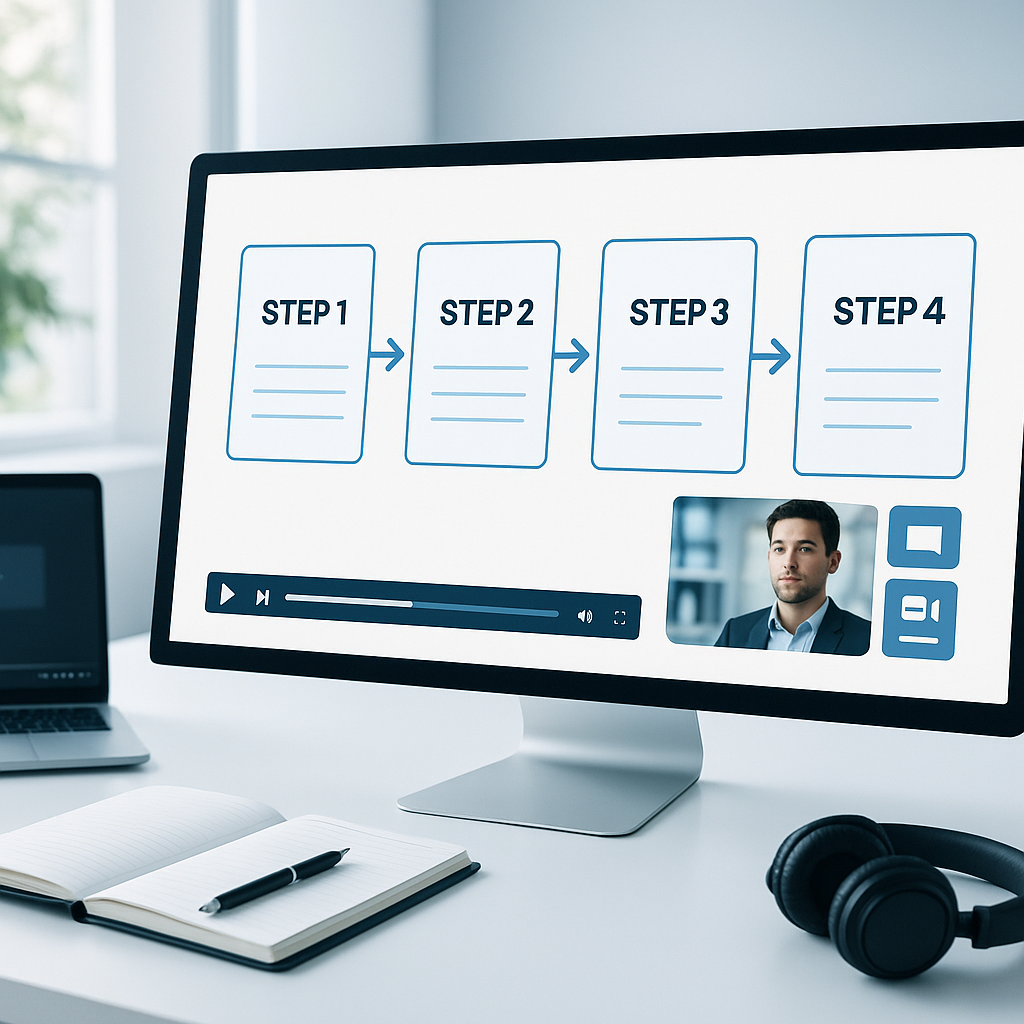
Customer support teams wrestle with the same core challenge: how can we scale helpful guidance without turning every ticket into a live session? The answer increasingly lies in self-service content—clear, digestible resources customers can access on their own. FAQ videos are a powerful format in that mix. They combine the clarity of written help docs with the engagement of video, making it easier for users to see exactly how to solve problems, follow steps, or understand concepts.
From my experience helping teams migrate from dense help docs to video explainers, the payoff is real. Not only do customers get faster answers, but support teams see fewer repetitive tickets, higher user satisfaction, and more consistent messaging across channels. The trick is to treat video creation as a product workflow: plan around audience needs, script for comprehension, produce with consistent quality, publish with discoverability in mind, and measure what matters.
In this guide, you’ll learn a practical, end-to-end process to convert customer support documents into effective FAQ videos. We’ll cover planning, scripting, production, accessibility, distribution, and how to quantify impact. Plus, you’ll find pro tips and quick notes to keep you moving fast without sacrificing quality.
The first step is to mine your help documentation for the most valuable, high-demand questions. Your goal isn’t to read every paragraph aloud; it’s to translate the essence of a support article into a short, actionable video that answers a concrete question.
What to do
What to avoid
Pro tip: Build a topic backlog in a shared document or project board. Update it monthly with new questions drawn from recent tickets, community forums, and product updates. A living backlog keeps your FAQ videos aligned with what real users need today rather than what you shipped six months ago.
Quick note: If you already have a knowledge base with search analytics, prioritize the queries that have high volume and low average time-to-resolution in your videos. Videos that address pain points with quick wins tend to perform best.
From my experience, starting with 5-10 high-impact questions is a sweet spot. It lets you establish a baseline, test your format, and learn what your audience wants without overwhelming your team or your viewers.
A strong script is the backbone of a good FAQ video. It should be clear, concise, and actionable, with a logical flow that guides the viewer to the point quickly. Storyboarding helps you visualize on-screen elements (screen captures, captions, callouts) and ensures your production time is efficient.
What to do
Sample script skeleton
Pro tip: Keep a consistent script style across videos. A simple template—Hook, Quick Answer, Steps, Tips, Next Steps—reduces cognitive load for your audience and makes production faster.
Quick note: If you’re new to video, consider starting with screen recordings (step-by-step demos) and gradually incorporate a talking-head segment for more personality once you’re comfortable with the process.
From my experience, a clear script saves you from countless retakes. A well-planned storyboard also reduces the time spent in post-production, because editors know exactly where to place overlays and captions.
This is where your plan becomes a tangible asset customers can actually watch and learn from. Quality matters, but consistency and accessibility often matter even more for long-term impact.
What to do
Pro tip: After you publish, enable automated captions and then do a quick quality check. A 1-2 hour per video editing sprint is enough for 1-2 minute videos if you keep a tight scope. Automation helps, but human review ensures accuracy.
Quick note: If you’re documenting a live product process, record multiple takes of tricky steps, then pick the clearest one. It’s easier to edit a well-recorded set than to salvage a single noisy take.
From my experience, the audio quality often dictates how much viewers trust the content. Investing in a good mic and a quiet space yields bigger improvements in engagement than upgrading the camera or adding fancy effects.
Tips for different formats
Publishing is not the end of the journey—it's the start of a feedback loop that informs updates to both your videos and your help documentation. The goal is twofold: make it easy for customers to find and watch the videos, and extract data to guide future improvements.
What to do
Pro tip: Create a simple weekly or monthly publishing cadence. For example, publish one video per week and release a monthly roundup post that summarizes all new FAQ videos with quick links to the related help articles.
Quick note: If your product has frequent updates, plan a quarterly video refresh. Review the top videos against the latest UI and revise scripts or visuals as needed. This keeps your self-service content current and reliable.
From my experience, videos that are discoverable, well-tagged, and tightly aligned with the written help docs tend to outperform standalone text articles for user success. Viewers appreciate a seamless handoff: a video that answers the question and a link to the article for deeper details.
Metrics that matter
If you’re starting out, a practical approach is to set quarterly targets: publish 8-12 videos in the first quarter, achieve a watch-time-to-views ratio above a baseline, and reduce related tickets by a measurable margin.
What is an FAQ video? An FAQ video is a short, single-topic explainer that answers a specific customer question directly, often accompanied by on-screen visuals or step-by-step demonstrations. It complements written help documentation by providing a dynamic, easily digestible format that speeds up comprehension and reduces confusion.
How long should an FAQ video be? Most effective FAQ videos range from 60 to 120 seconds. Shorter videos tend to perform better for quick tasks, while slightly longer videos are acceptable for more complex workflows as long as the content remains tightly focused. A good rule of thumb is: one question, one minute, max two minutes for the most complex topics.
Do I need to show my face in the video? Not necessarily. Face-to-camera can build trust, but screen recordings with narration can be equally effective, especially for product-focused topics. A hybrid approach—brief talking-head intro, followed by screen demos—often gives you the best of both worlds: personal connection and concrete guidance.
How do I convert documents into video topics? Start by extracting the top questions customers ask in your support tickets and knowledge base search logs. Group similar questions under themes, then write a concise script that answers each question in about 60-120 seconds. Create a storyboard and produce a test video to validate that the structure resonates with your audience before scaling.
What tools do I need? Basic setup includes:
How can I ensure accessibility? Add accurate captions and a text transcript. Use high-contrast text and large fonts for on-screen callouts. If possible, provide a sign language option or an ASL video version for key topics. Ensure the video player supports keyboard navigation and screen readers, and verify that captions sync properly with the narration.
How do I measure impact? Track metrics like watch time, completion rate, and engagement (likes, comments, shares). Monitor changes in related ticket volumes and first-contact resolution rates for topics covered by your videos. Run A/B tests for thumbnails and titles to optimize click-through and watch time. Collect qualitative feedback through viewer comments or brief post-view surveys to refine topics and formats.
How often should I update FAQ videos? Plan for at least quarterly refresh cycles for topics tied to UI changes or new features. More stable, evergreen topics can go longer between updates but should be revisited if user feedback indicates outdated steps or terminology. Maintain a changelog linking updates to product changes and help articles.
FAQ videos offer a practical path to scale self-service content without sacrificing clarity or accuracy. By converting customer support documents into focused, digestible videos, you can meet customers where they are—on their own time and in their preferred format. The core ideas are simple: start with the most impactful questions, script for clarity, produce consistently, publish with discoverability in mind, and measure what matters.
From my experience, teams that treat video creation as a repeatable product process see compounding benefits. You’ll reduce repetitive tickets, improve customer satisfaction, and create a library that new users can consume at their own pace. Remember to keep it human—clear language, practical steps, and a friendly tone go a long way in building trust with your audience.
Pro tip: Build a lightweight pipeline you can scale. Start with a template for scripts, a consistent storyboard format, and a simple checklist for publishing and accessibility. Quick note: celebrate small wins early—your first 5 videos will teach you more than you expect about what works and what needs to be adjusted.
If you’re ready to level up your help documentation and turn it into a reliable stream of FAQ videos, start with a five-question pilot. Gather feedback, iterate, and then scale up. The payoff isn’t just fewer tickets; it’s happier customers who can find answers quickly and confidently, on their own terms.
Get the latest insights on AI-powered document conversion, productivity tips, and industry updates.
No spam. Unsubscribe at any time.
Transform complex documents into engaging explainer videos with AI. Step-by-step guide for creating professional educational and marketing videos.

From my experience, the hardest part isn’t the technology—it’s translating a paper’s argument into a story with a beginning, middle, and end.
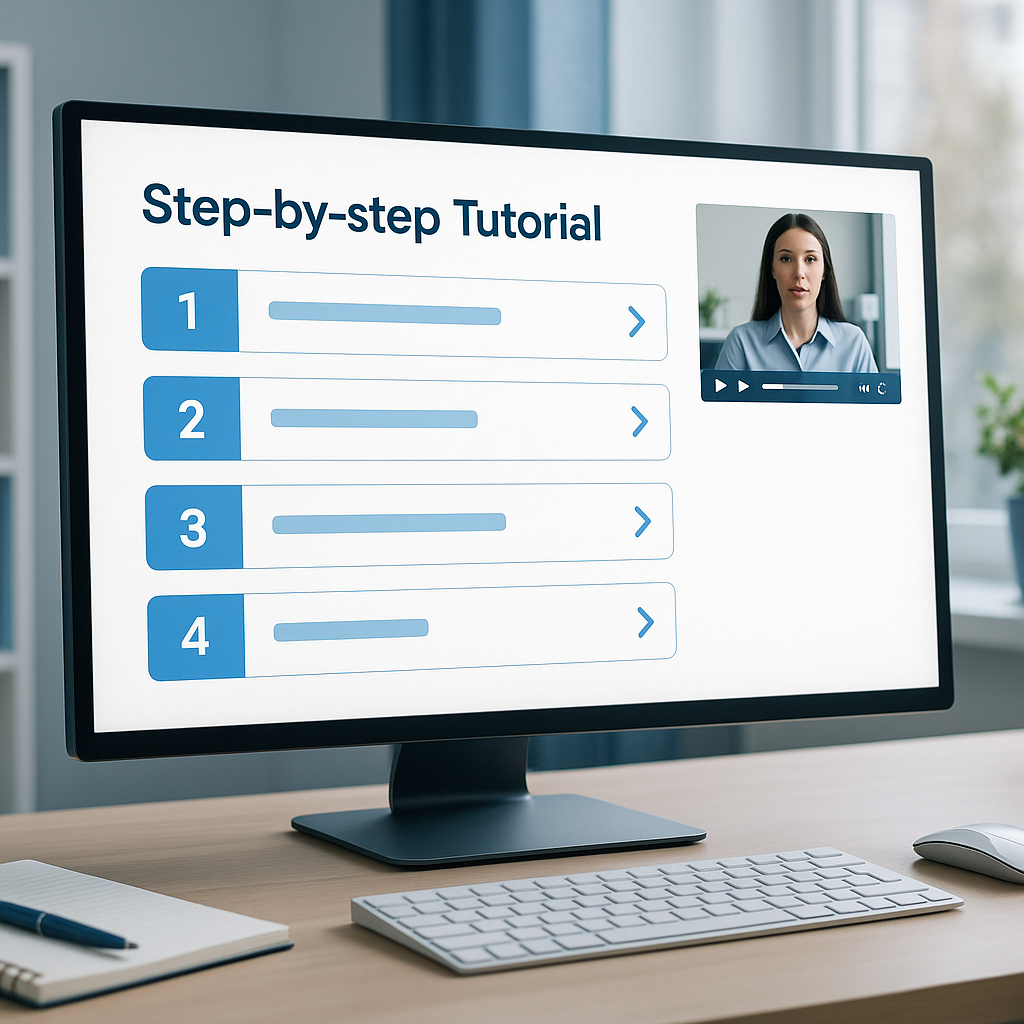
Video tutorials offer a different learning path: they combine visuals, narration, and on-screen cues to guide users through each step.