How to Create Study Guides from PDFs Using AI in 5 Minutes
TL;DR
You can turn any PDF into a ready-to-use study guide in minutes by using AI-powered pdf summarization and structured prompts. The trick is to extract the text (or OCR for scanned pages), prompt an AI to produce a clear outline, key terms, and practice questions, then export sections as flashcards or notes. With a little setup and the right tools, this becomes a repeatable, learning-automation workflow that saves hours and boosts retention.
Introduction
If you’re a student, educator, or lifelong learner, you’ve probably wrestled with turning dense PDFs into something you can actually study from. Long chapters, scattered definitions, and diagrams can feel like roadblocks rather than roadmaps. That’s where AI comes in. By combining pdf summarization with AI-driven study guides, you can transform static documents into dynamic, bite-sized learning resources — in a fraction of the time it used to take.
From my experience, a well-structured study guide does more than summarize content—it nudges you toward active recall and spaced repetition. AI study tools can automate the boring parts (chunking chapters, extracting terms, drafting quick quizzes) so you can focus on understanding concepts and applying them. And because this approach scales, you can create multiple guides across courses with consistent quality.
In this guide, you’ll learn a practical, 5-minute workflow to go from a PDF to a polished study guide, plus tips to tailor the output to your learning style. We’ll cover the essential techniques, common pitfalls, and best practices so you can start using learning automation today.
Pro tip: Start with one chapter first. Once you’ve mastered the 5-minute flow, you can batch-process entire textbooks by chunking PDFs into chapters or sections.
Quick note: If your PDF is a scanned document, OCR is a must. No text means no summarization. A quick OCR pass (even inside many PDF readers) dramatically expands what you can extract and study.
Main Content Sections
1) Understanding the AI-driven study guide workflow
In this section, we’ll frame what “study guide creation” looks like when you bring AI into the mix and why pdf summarization is the linchpin.
-
What a study guide should include
- Learning objectives or outcomes
- A concise chapter summary (in your own words)
- Key terms and formulas with quick definitions
- Concept maps or relationships between ideas
- Practice questions (and answers) to test recall
- Quick reference sheets (one-pagers or flashcards)
-
Why AI helps
- Speed: AI can distill pages into bullet points, definitions, and diagrams in seconds.
- Consistency: A standard structure across guides helps you compare topics more easily.
- Personalization: You can tailor outputs to your course syllabus, exam format, or preferred study method (flashcards, outlines, or Q&As).
-
The role of pdf summarization
- Extracts core ideas, removing filler text
- Generates an outline from headings, subheadings, and highlighted terms
- Produces digestible chunks that fit into your study sessions
-
Learning automation in practice
- Automate repetitive tasks (chunking, converting to flashcards, exporting to your note app)
- Use prompt templates to ensure output consistency
- Create reusable workflows that you can run on new PDFs with minimal tweaks
-
Data and outcomes you can expect
- Reduced time to create a study guide from hours to minutes for standard chapters
- Improved retention through structured retrieval practice
- Better exam performance when study guides align with learning objectives
From my experience, the key to success isn’t just “summarize this PDF.” It’s building a study guide that nudges you to recall information, connect concepts, and test yourself. AI is the accelerant, not the end goal.
Pro tip: Start with a clear objective for each guide. For example: “By the end of this guide, you should be able to define X, explain Y, and apply Z to a real-world scenario.”
Quick note: If you’re collaborating with classmates, you can share a standardized AI-generated study guide format so everyone builds on the same structure.
2) Quick 5-minute workflow: from PDF to study guide
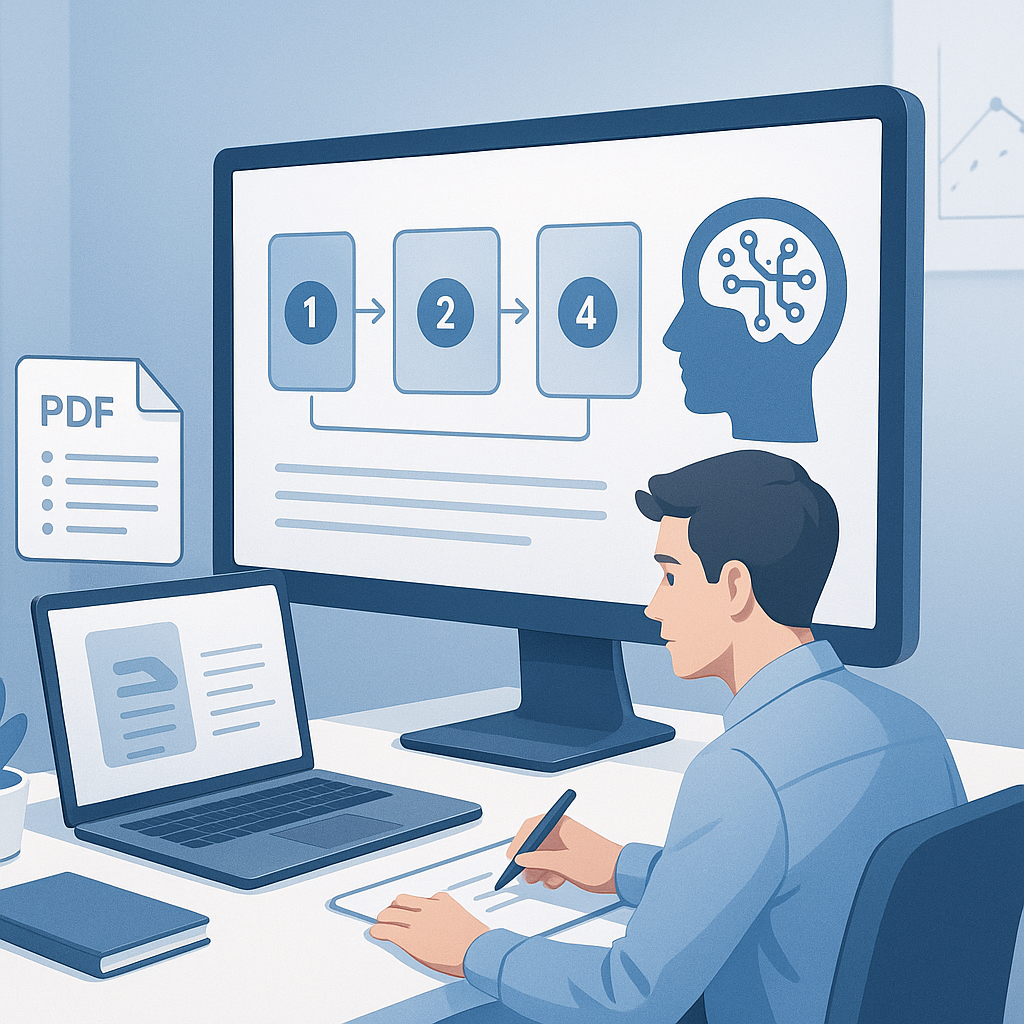
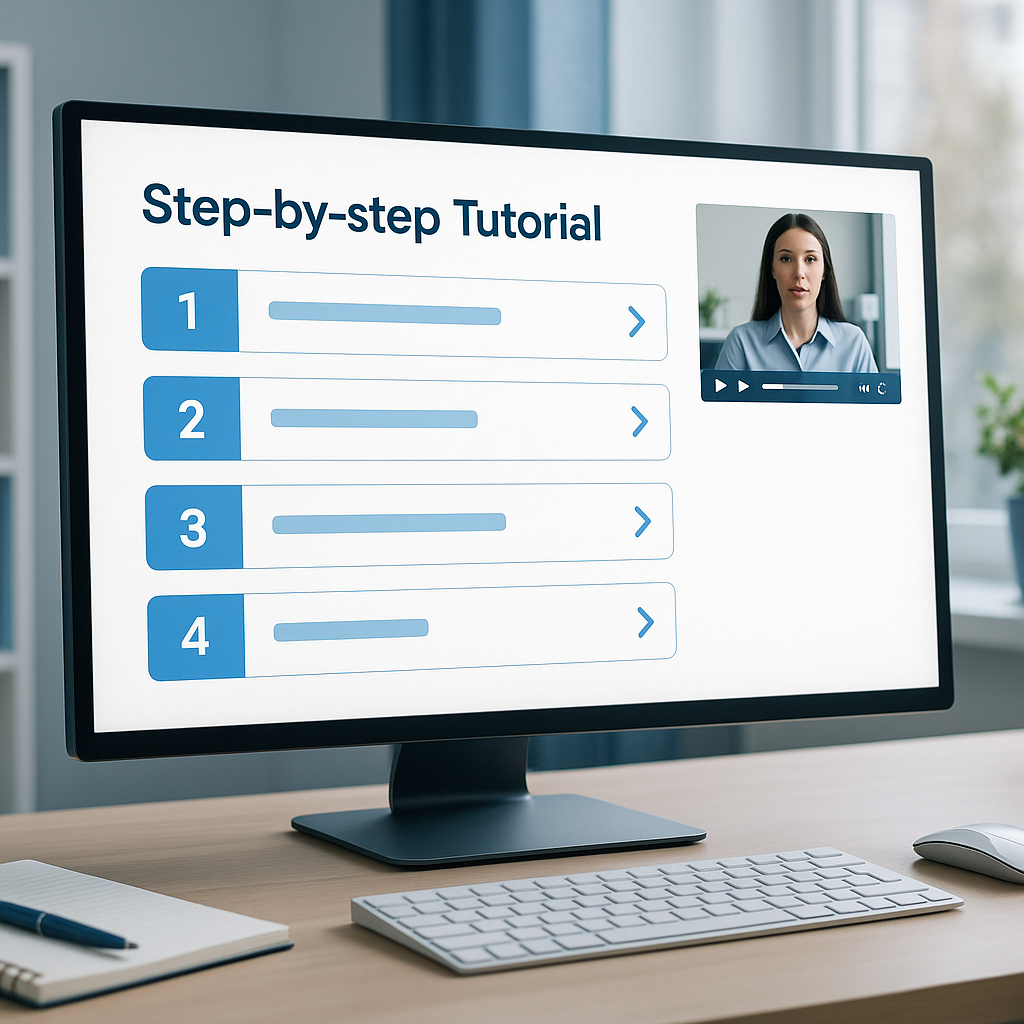
This section breaks down a fast, repeatable process you can run in about five minutes per PDF chapter. The steps assume you have access to a capable AI study tool and a few preparation tricks.
Step 1 — Prepare your PDF (30 seconds)
- If the document is long, decide the scope (which pages or chapters to cover).
- Check text accessibility: ensure you can copy text. If not, you’ll need OCR (more on this below).
- For diagrams and equations, plan how you’ll capture their meaning (textual descriptions or quick sketches can help later).
Step 2 — Extract text and create a clean input (1 minute)
- Use a PDF reader or a lightweight tool to export or copy text.
- If dealing with scanned PDFs, run an OCR pass:
- Free/fast options: Google Drive OCR, Adobe Scan, or built-in OCR in many readers
- For better control: Tesseract OCR with a simple script can do the job on batch PDFs
- Clean up the text: remove page headers/footers, correct obvious OCR errors, and split content into logical chunks (e.g., sections or subsections)
Step 3 — Generate a structured summary (1 minute)
- Paste or feed a chunk (e.g., a section or chapter) into your AI tool and use a targeted prompt to produce:
- A short summary paragraph
- A list of key terms with definitions
- A high-level outline or concept map
- Example prompt you can adapt:
- “Summarize this section focusing on the main concepts, definitions, and any formulas. List 5-7 key terms with brief definitions. Create a one-page outline showing how these concepts relate.”
- If you’re using batch processing, feed multiple sections and request a consistent output format.
Step 4 — Build the study guide structure (1 minute)
- Ask the AI to convert the generated content into sections:
- Learning objectives
- Core ideas (bulleted summary)
- Key terms and formulas (with definitions)
- Quick concept map or relationships
- 5-10 practice questions (with answer keys)
- Pro tip: Specify output format for your preferred tool (plain text, Markdown, Notion blocks, or Anki-friendly formats). This minimizes editing later.
Step 5 — Export and quick QA (30 seconds)
- Export the study guide to your preferred format (PDF, Word, Markdown, or your note app).
- Do a quick read to catch obvious issues or typos. If needed, run the AI prompt again with a “revise for accuracy” instruction for the specific section you found lacking.
- Quick note: If you’re preparing flashcards, export the questions and answers in a CSV or Anki-friendly format to import in one go.
Pro tip: Use a consistent prompt structure. For example, always start with “Create objectives, a concise summary, key terms, and 8 practice questions” so your outputs stay uniform.
Quick note: For very long PDFs, chunk by chapter, not by page. It keeps prompts manageable and results coherent.
-
Tools you can rely on for this workflow:
- AI study tools (ChatGPT, Claude, or any capable LLM)
- PDF text extraction tools (Adobe Acrobat, Smallpdf, or open-source options)
- OCR software (Tesseract, ABBYY FineReader, or built-in mobile scanner apps)
- Note/flashcard exporters (Notion, Obsidian, Anki, or simple Markdown)
-
Practical example prompts
- “Summarize this chapter focusing on the main concepts and provide 6 key terms with definitions. Then draft 6 multiple-choice questions with the correct answer indicated and brief explanations.”
- “Create a one-page, highly structured outline showing relationships between concepts A, B, and C. Include 4 practice questions at the end.”
- “Produce a printable one-page cheat sheet with essential formulas and a brief recap of each concept, suitable for review in 5 minutes.”
-
Real-world data point: Students who regularly convert readings into structured study guides (through outline or flashcard formats) report faster review cycles and higher recall during finals. Meta-analyses on retrieval practice show average performance gains in the 10-20% range, with some studies reporting more pronounced improvements depending on subject matter and time between study sessions.
-
Quick tip for heavy subjects: If a chapter has many formulas, consider a dedicated “formula cheat sheet” page at the start and then place application questions afterward.
3) Fine-tuning and personalizing your study guides
After the initial pass, you’ll want to tailor outputs to your course, goals, and study style. This section covers how to refine AI-generated guides and keep them aligned with learning objectives.
-
Align with learning objectives and exam formats
- If your course provides objectives or a syllabus outline, include them in the prompt and ask the AI to map each objective to content in the chapter.
- Create objective-based questions that mirror exam formats: multiple-choice, short answer, or problem-solving prompts.
-
Adapt to subject-specific needs
- for science and math: extract and organize definitions, theorems, and formulas; add worked examples; generate practice problems with step-by-step solutions
- for humanities: emphasize key arguments, dates, authors, and major critiques; build a timeline or argument map; craft compare/contrast prompts
-
Visual aids and memory hooks
- Convert complex relationships into simple diagrams or bullet-point concept maps
- Add mnemonics or memory hooks for lists or sequences
-
Personal study preferences
- If you prefer flashcards, you can ask the AI to convert key terms and definitions into Q&As suitable for Anki or Quizlet
- If you study best with outlines, request a hierarchical tree structure that you can expand later
-
Pro tip: Build a “living” study guide
- Re-run the workflow for updated PDFs or revised chapters
- Keep a version history and annotate the AI outputs with your reflections or corrections
- Use spaced repetition scheduling to time reviews for maximum retention
-
Quick note on accuracy and quality control
- AI outputs are helpful, but they aren’t a substitute for your own verification. Always cross-check terms, definitions, and formulas against the source or trusted references.
- If something sounds off, ask the AI to “double-check for accuracy” or “provide sources or page references” (where possible). For some tools, you can enable citation features to link back to the original text.
-
From my experience: a well-tuned study guide not only summarizes content but also creates a framework for you to practice retrieval, apply concepts, and track your progress. When you combine AI automation with your own edits, you get a reliable, repeatable process you can rely on during crunch study weeks.
Pro tip: Create a preset template for each subject or course. A line like “Learning objective → summary → terms → formulas → 5 questions → 1-page cheat sheet” makes the 5-minute workflow even faster on subsequent PDFs.
Quick note: If you’re using shared materials, consider versioning your study guides and tagging them by course, unit, and chapter to keep things organized as you build a personal knowledge base.
FAQ Section
- What exactly is pdf summarization, and how does it help with study guide creation?
- Pdf summarization is the process of condensing the content of a PDF into shorter, essential ideas, usually including a brief summary, key terms, and an outline. It helps with study guide creation by rapidly extracting core concepts, which you can then turn into learning objectives, flashcards, and practice questions. This is the first step in a smooth, AI-powered learning automation pipeline.
- Is it safe to upload PDFs to AI tools?
- Safety and privacy depend on the tool you choose. Many consumer AI tools store data temporarily for processing, and some offer enterprise options with higher privacy guarantees. If you’re handling sensitive or copyrighted material, consider offline or self-hosted options, or use tools that emphasize data privacy (e.g., clear data handling policies, local processing, or self-hosted models). Quick note: read the privacy policy and consider watermarking your documents if needed.
- Can I do this offline, without sending data to the cloud?
- Yes. Use local or offline tools for text extraction (OCR) and language models that run on your machine. You can run smaller, open-source models locally or use offline OCR like Tesseract. For offline AI capabilities, you might pair local LLMs with a lightweight prompt workflow. Pro tip: offline options are slower and may require more technical setup, but they give you control over data privacy.
- How accurate are AI-generated study guides, and how can I improve accuracy?
- Accuracy varies with the quality of the input, the prompt, and the model’s capabilities. Expect high-level summaries to be accurate for well-structured material but be cautious with nuanced details, formulas, or niche terminology. Improve accuracy by:
- Using high-quality OCR if needed
- Providing the AI with explicit context (chapter title, course objectives)
- Asking for explicit checks or citations
- Quick QA pass yourself or with a peer
- Can this handle diagrams, graphs, and mathematical notation?
- Text-heavy content is easiest; diagrams and formulas can be described in text form or converted into simple descriptions. For math notation, you can summarize formulas and provide textual equivalents, or generate a concise formula sheet. If diagrams are essential, consider including low-resolution descriptions or external links to diagrams and pairing them with the textual explanations.
- What if the PDF is very long or contains multiple chapters?
- Break it into chunks (chapters or sections). Treat each chunk as a separate input and generate a mini-study-guide for each. Then consolidate the chapters into a single, cohesive guide. Pro tip: a consistent chunking strategy (e.g., per chapter) helps maintain coherence across the entire document.
- How do I export the AI-generated study guide to a format I can study from or share?
- Most tools allow exporting to Markdown, PDF, Word, or plain text. For flashcards, export to CSV or a format compatible with Anki or Quizlet. If you study with Notion or Obsidian, export to Markdown with clear headings and bullet points for easy import. Quick note: keep your export format consistent to simplify future updates.
- Can AI-generated study guides replace manual study notes entirely?
- They can replace a portion of your note-taking workflow, especially the repetitive parts (chunking content, creating outlines, drafting questions). They work best when used to support your own understanding. I still recommend you add your own reflections, corrections, and course-specific insights. Over time, your notes become more personal and valuable for long-term retention.
- How often should I refresh or re-create study guides for a course?
- For new material or updated syllabi, run the workflow as soon as you receive new PDFs. For long courses, a good rhythm is:
- Week 1: generate study guides for new topics
- Week 2-4: review and refine
- Before exams: consolidate all guides and practice with the questions
- Quick note: consider a quarterly review cycle where you update study guides to reflect any changes in the course material.
Conclusion
Turning PDFs into study guides with AI is less about replacing your study habits and more about amplifying them. By combining pdf summarization with targeted prompts and a clean, repeatable workflow, you can generate robust study guides in minutes, not hours. This approach supports learning automation, boosts efficiency, and frees you to focus on deeper understanding, problem-solving, and exam readiness.
Key takeaways:
- Start with a clear objective for each guide and chunk your PDFs into sections to keep outputs coherent
- Use OCR for scanned PDFs; text accessibility is essential for reliable AI summarization
- Create a structured prompt template to produce consistent outputs (objectives, summary, terms, formulas, questions)
- Export outputs to your preferred study formats (flashcards, outlines, or one-page sheets) for quick review
- Personalize and tighten outputs over time to fit your course and your learning style
- Always verify AI outputs against sources and integrate your own insights for maximum retention
Pro tip: Treat AI-generated study guides as the scaffolding. Your own edits, corrections, and reflections turn those scaffolds into durable knowledge.
Quick note: If you’re collaborating with others, establish a shared study-guide template and a common set of prompts. That way, everyone contributes consistent, high-quality content that’s easy to review and build upon.
From my experience, this approach transforms how you study. You’ll spend less time chasing information and more time engaging with it—retrieving, applying, and internalizing concepts. If you adopt a scalable, five-minute workflow, you’ll build a library of AI-assisted study guides across courses, turning learning automation into a real-time advantage.
If you’d like, I can tailor a ready-to-use prompt template and a step-by-step checklist for your favorite PDF reader and AI tool, so you can start generating your first study guide in under five minutes.